 PearPass
How to Connect the Browser Extension to PearPass Desktop
Follow the steps below to connect the PearPass browser extension to your desktop app. Once active, you can use it to save and sign in with passkeys.
The browser extension requires the PearPass desktop app to be running. Without it, the extension cannot access your credentials.
Install the browser extension
Install the PearPass browser extension. See the Browser Extension Installation Guide.
Generate a pair code
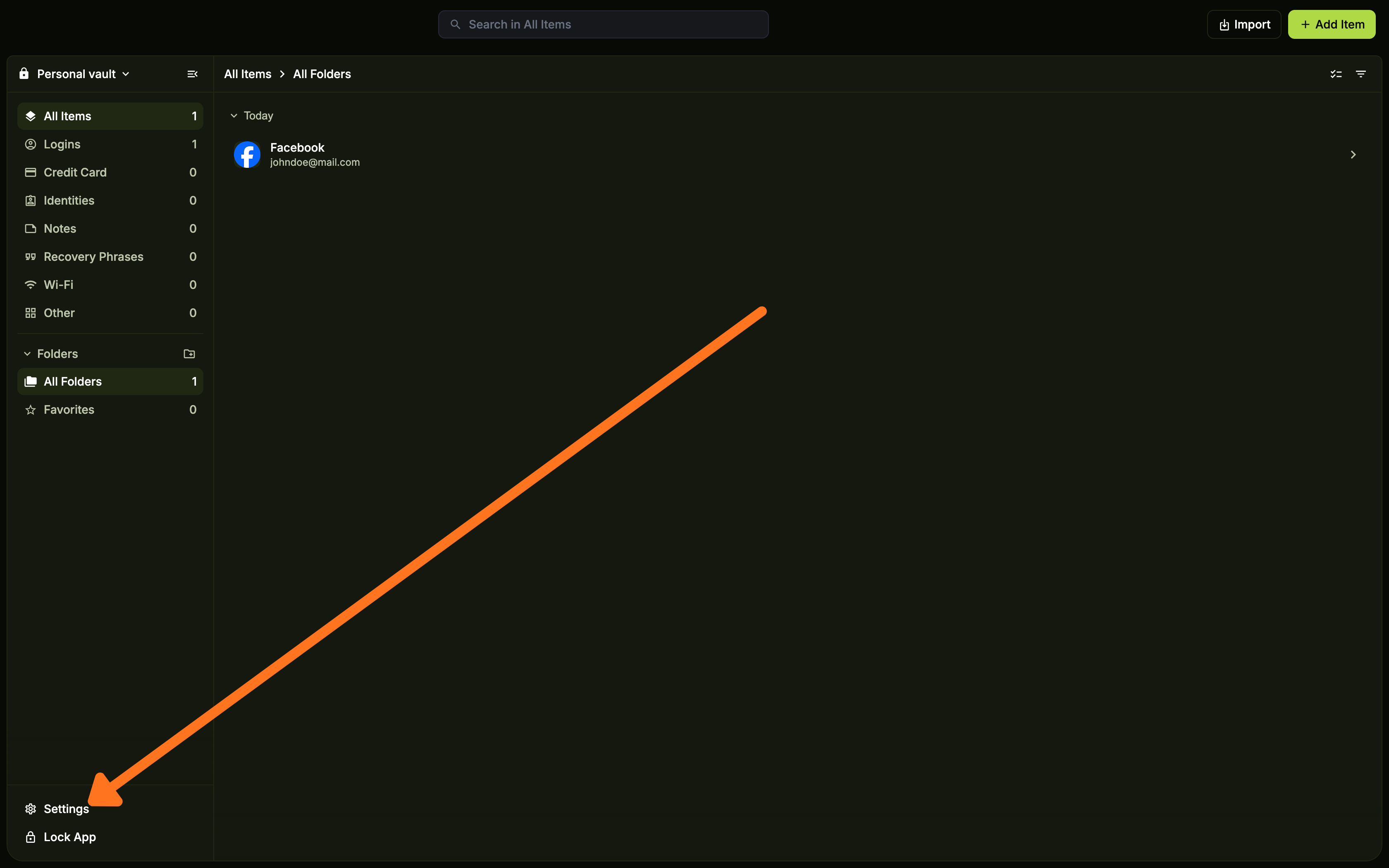
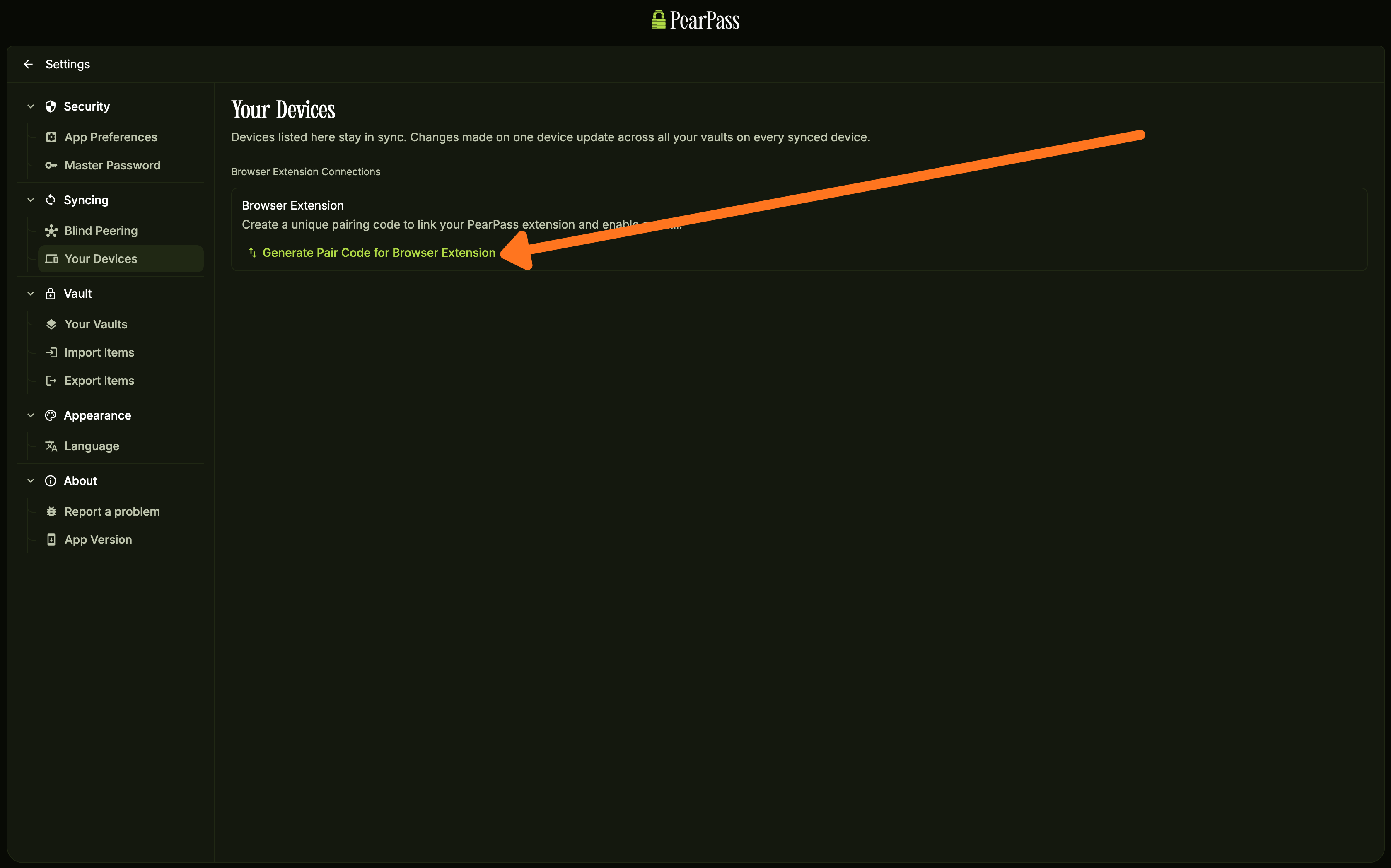
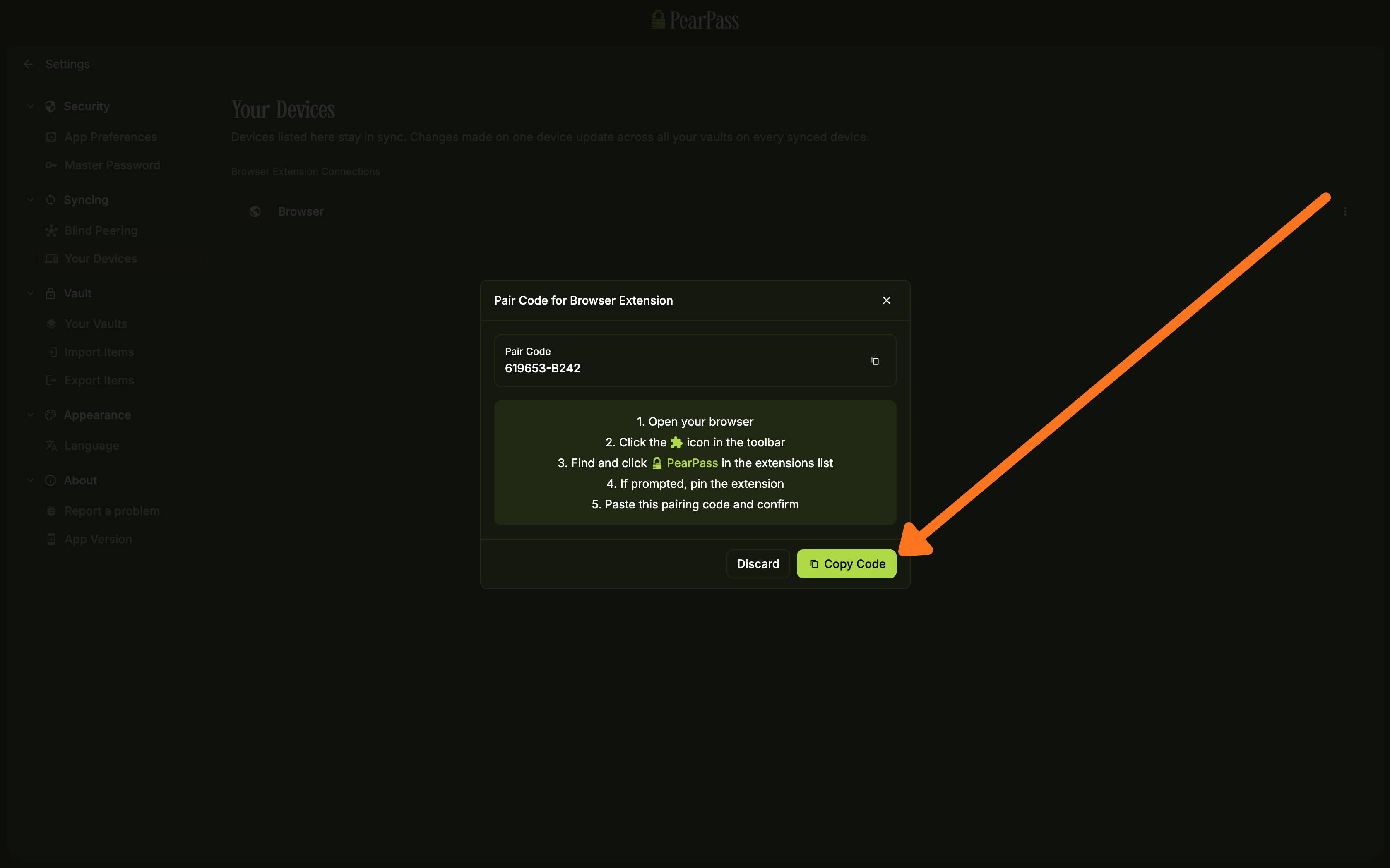
On the side menu bar, under the Sync section, click Your Device. On the Your Device screen, click Generate Pair Code for Browser Extension.
Open the browser extension
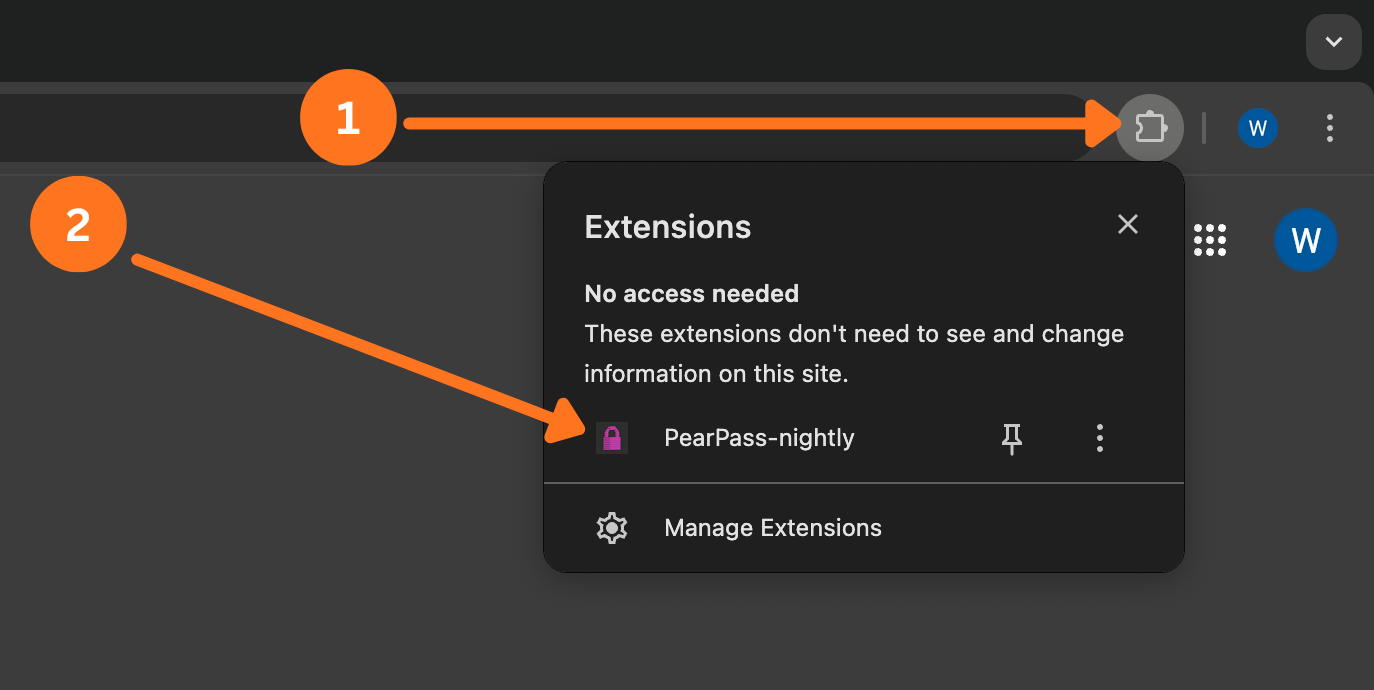
In your browser toolbar, click the Extensions icon (puzzle piece), then click PearPass.
Pin the browser extension (optional)
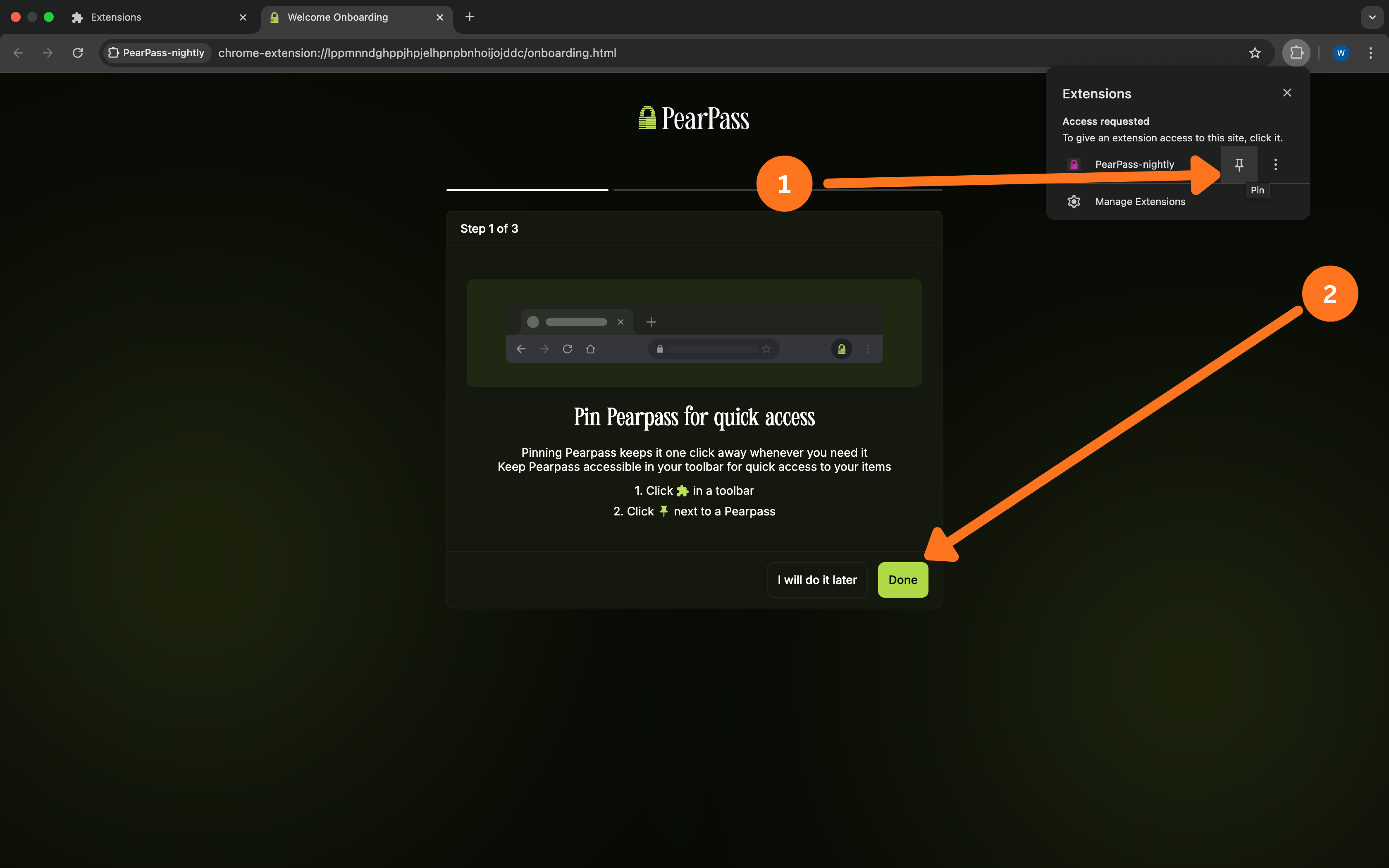
If you have not pinned PearPass yet, follow the onscreen instructions to pin it for quick access:
- Click the Extensions icon (puzzle piece) in your browser toolbar.
- Click the Pin icon next to PearPass.
Then click Done.
Paste the pair code and connect
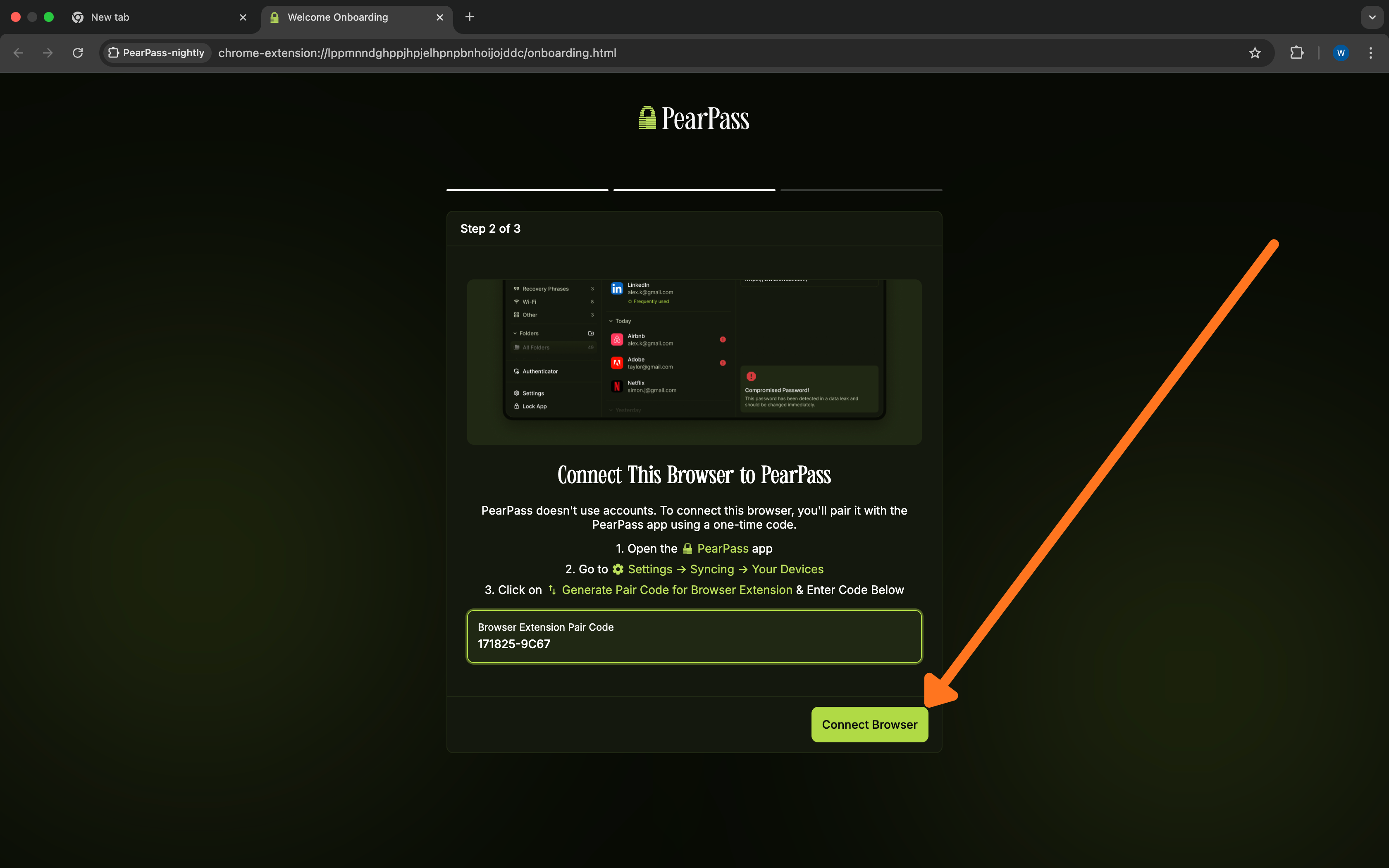
Paste the pair code into the Browser Extension Pair Code field, then click Connect Browser.
Sign in to the extension
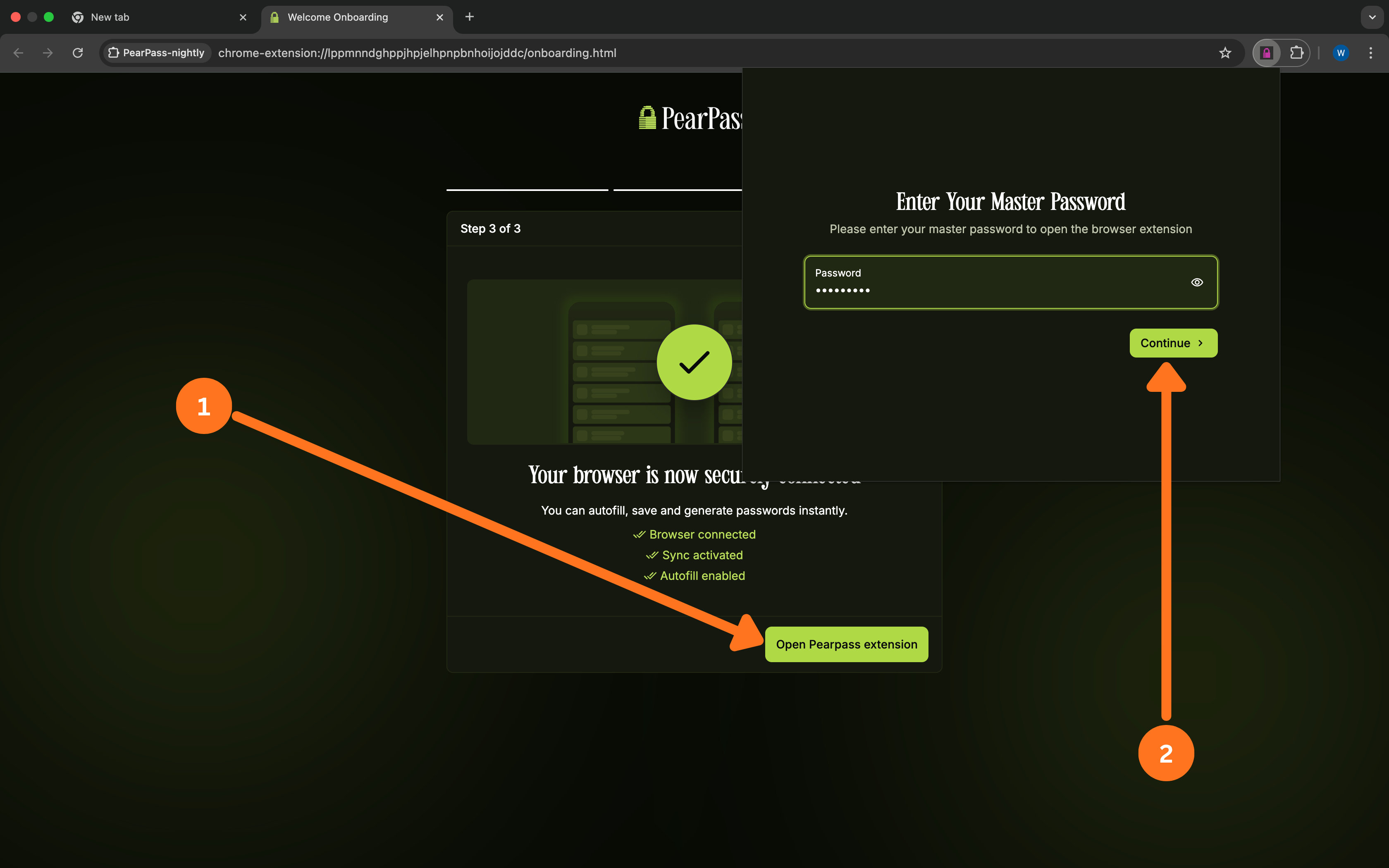
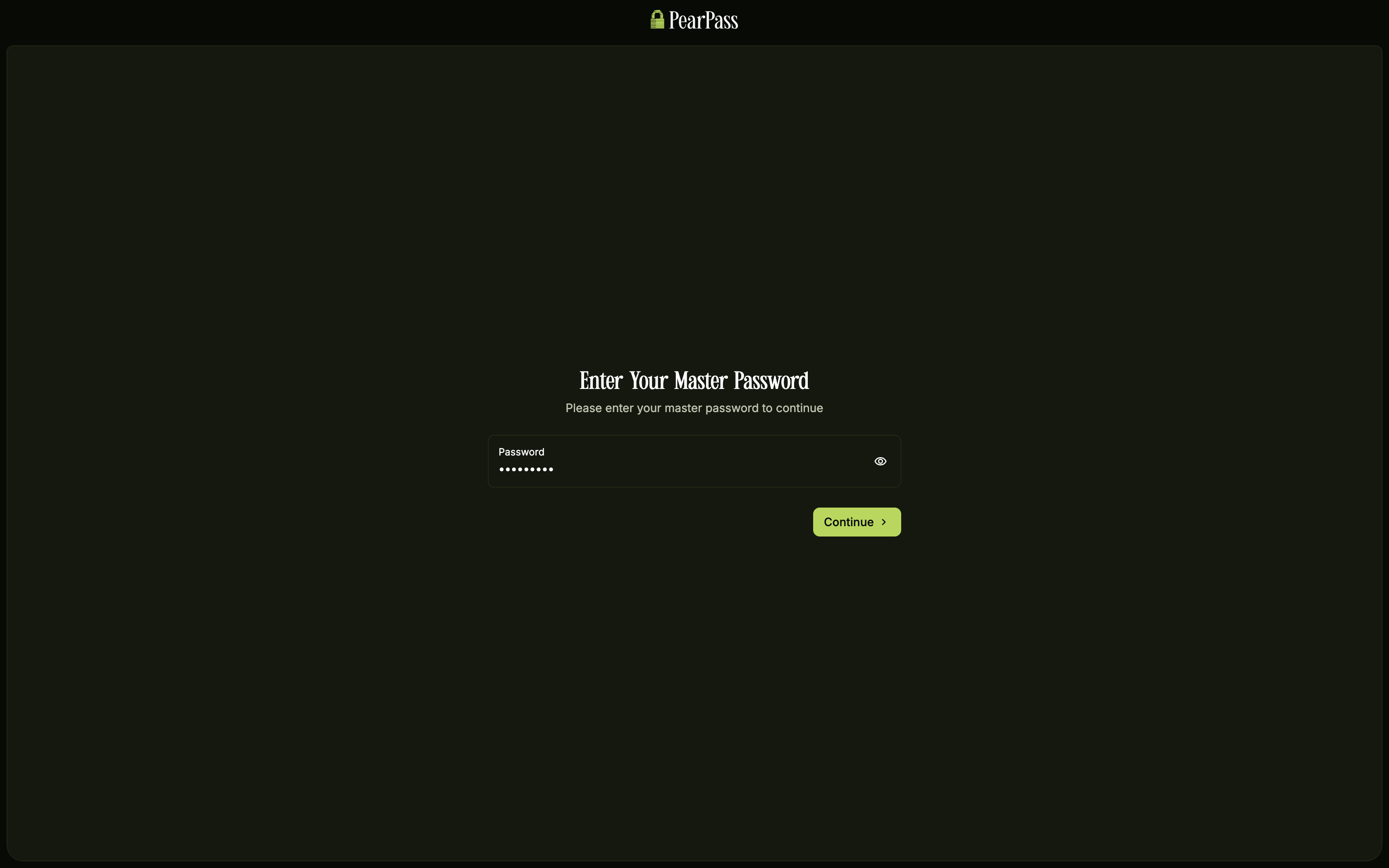
Click Open Pearpass extension. In the login dialog, enter your master password, then click Continue.